Decoding PLC Errors: The Complete Troubleshooting Guide for Engineers
2026年2月6日 by newideapack
Decoding PLC errors is a critical skill for any maintenance professional looking to minimize costly industrial downtime. When a packaging line halts unexpectedly, the ability to quickly interpret diagnostic signals—from blinking hardware LEDs to complex software fault codes—is the only way to restore production. This complete troubleshooting guide provides engineers with a systematic approach to identifying root causes and fixing PLC system failures before they impact your bottom line.
Imagine you are in the middle of a high-volume production shift when your coffee packaging line suddenly grinds to a halt. Every minute of downtime translates into lost revenue and mounting stress as you struggle to find the source of the problem. To get your floor back in motion, effective PLC error troubleshooting is the only way to transform cryptic digits into an actionable repair plan.
Read on to discover how to decode these common faults and master the art of industrial maintenance.
What is PLC error troubleshooting for industrial codes?
PLC error troubleshooting for industrial codes involves interpreting alphanumeric signals generated by the controller to fix hardware or software anomalies. These codes range from simple low-battery warnings to critical system shutdowns that protect your machinery from damage. Performing PLC error troubleshooting helps you distinguish between soft faults that allow limited operation and hard faults that stop everything. You must first check the diagnostic buffer in your software to see the exact time and nature of the fault.
Why do controllers throw errors?
Errors exist primarily as a protective layer for your sensitive industrial electronics and expensive mechanical components. Without these diagnostic codes, a simple sensor misalignment could lead to catastrophic mechanical crashes or electrical fires.
You might be wondering: Is every error a sign of a broken part?
Software logic loops or overflows.
Environmental heat spikes in the cabinet.
Loose wiring connections from vibration.
Incoming power surges or sags.
The reality is that most errors are preventative measures rather than permanent hardware failures that require replacement.
How do I read the LED status?
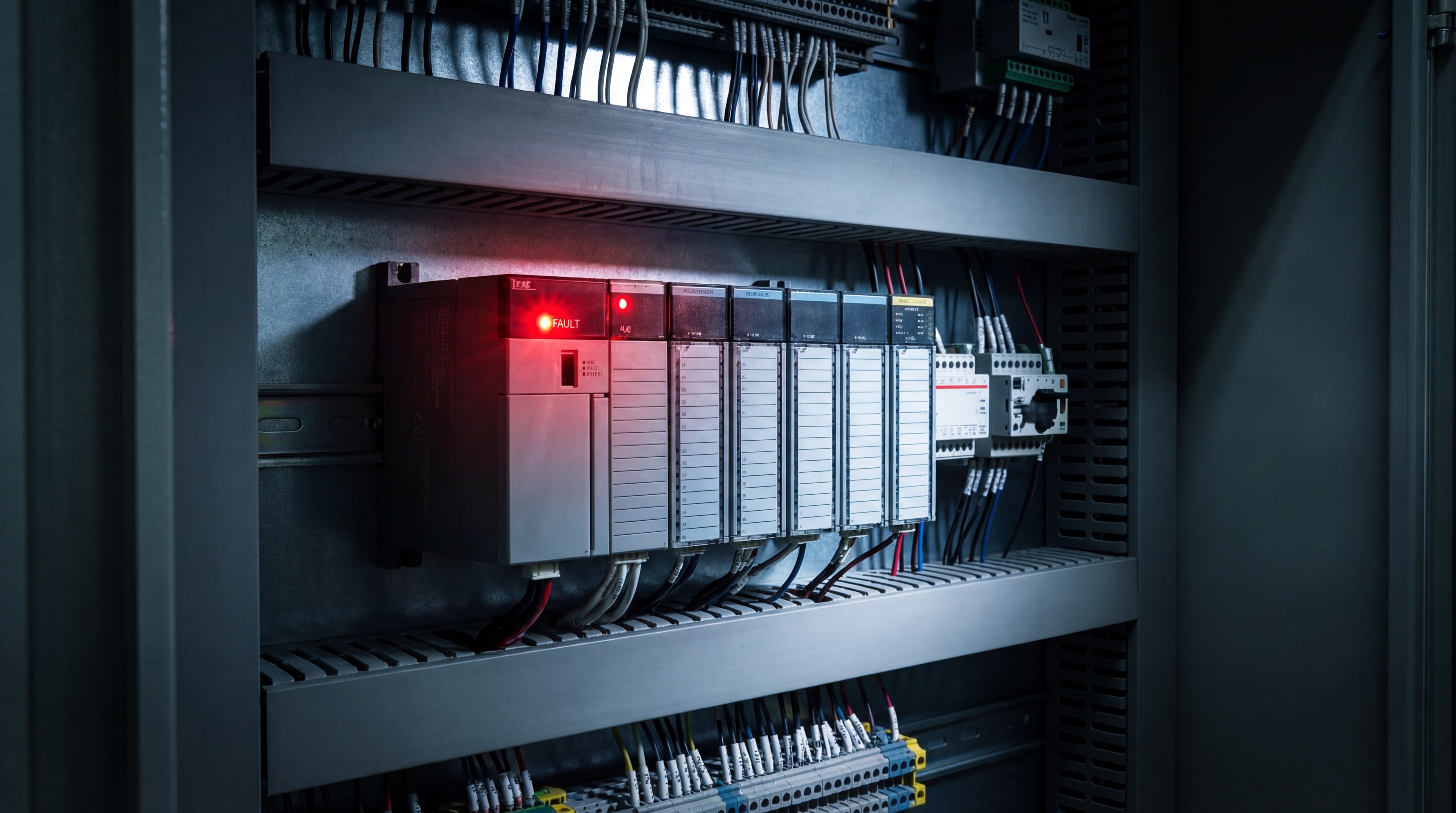
The physical LEDs on the front of your PLC module provide the first visual clue before you open your laptop. A solid red light usually indicates a fatal hardware failure, while a blinking light suggests a configuration or communication issue.
Think about this:
Green means the CPU is in “Run” mode.
Amber typically indicates a “Force” or “Warning” state.
Red is the universal sign for a “Fault” needing attention.
Key Takeaway: Understanding LED states allows you to narrow down the problem to hardware or software before starting deeper diagnostics.
LED State
Meaning
Action
Solid Red
Fatal Hardware Fault
Replace CPU or reset power
Blinking Red
Recoverable Fault
Check diagnostic buffer
Solid Green
Normal Operation
No action needed
This table provides a quick reference for the initial visual inspection of any industrial controller during a breakdown.
Why does connectivity need PLC error troubleshooting?
Smart Controls
Connectivity needs PLC error troubleshooting because communication gaps prevent the controller from “talking” to HMIs, drives, or remote I/O modules. These errors usually stem from physical layer failures like damaged cables or logical mismatches in IP addresses and baud rates. Consistent PLC error troubleshooting requires you to verify every node on the network to ensure data packets flow without interruption. If one device drops off the network, the entire automated sequence on your packaging line might fail.
Is the Ethernet cable the culprit?
Physical damage to cables is the most common reason for intermittent communication faults in a vibrating factory environment. Over time, the constant movement of a newideapack machine can loosen connectors if they are not properly secured.
Here is the kicker: It looks plugged in, but is it actually working?
Pinched insulation in the cable tray.
Corroded RJ45 contacts from humidity.
Shielding interference from nearby motors.
Exceeded maximum cable length limits.
Always swap the cable with a known-good one before you start changing complex software settings or IP configurations.
Are the IP addresses conflicting?
When two devices are assigned the exact same IP address on a network, neither will be able to communicate reliably. This often happens after a factory-wide network upgrade or when you add a new sensor to the system.
Look: A simple ping test from your laptop can reveal if the device is actually “visible” to the rest of the machinery. If the response time is high, you likely have electrical noise interfering with the signal.
Key Takeaway: Maintaining a master IP address list for your facility is the best way to prevent network conflicts during maintenance.
Comm Issue
Likely Cause
Solution
Timeout Error
High Network Traffic
Segment the control network
No Device Found
Wrong IP Subnet
Match IP ranges on nodes
Intermittent Drops
Electrical Noise (EMI)
Use shielded cables
The data above highlights that most communication failures are either physical cable problems or basic IP configuration errors.
Can PLC error troubleshooting resolve CPU faults?
PLC error troubleshooting can resolve CPU faults by identifying whether the processor stopped due to a power dip or an illegal logic instruction. A CPU fault is the “blue screen of death” for industrial automation and requires immediate attention to resume production safely. Using PLC error troubleshooting methods, you should clear the diagnostic buffer to see exactly which line of code triggered the halt. Often, the CPU stops itself to prevent damage from a “division by zero” error or a memory overflow.
Did the power supply dip?
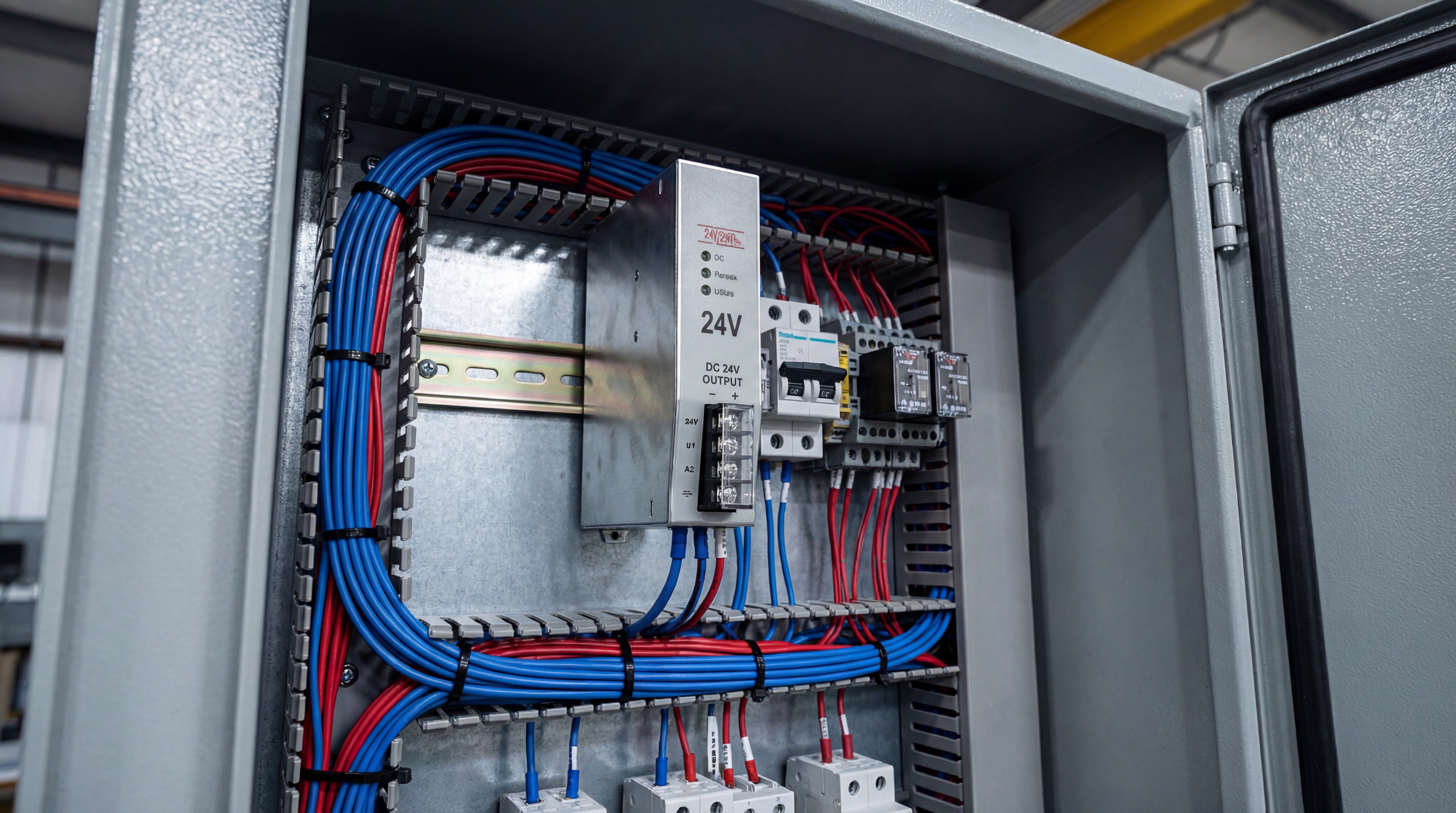
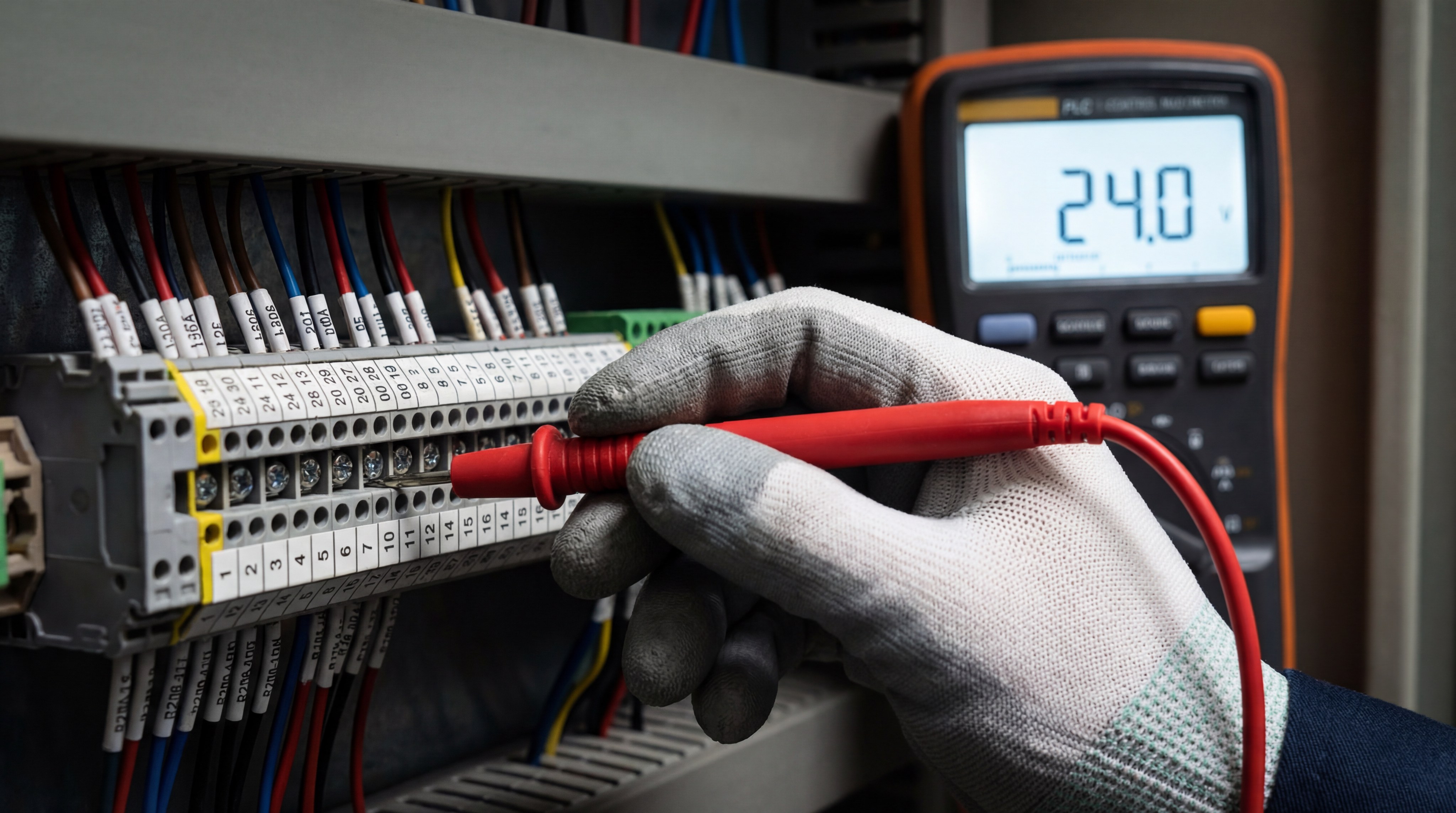
Fluctuations in the 24V DC power supply can cause the CPU to reset or throw a general fault code. If the voltage drops even for a millisecond, the processor loses its “Ready” state and stops the entire process.
The best part? Checking the power is easy with a standard multimeter.
Check input AC voltage.
Verify 24V DC output stability.
Tighten terminal screw connections.
Inspect backup battery health.
If your battery is dead, a power cycle could wipe the entire program, so always check the “BATT” LED first.
Is the program memory overloaded?
Uploading a program that exceeds the available RAM of the controller will cause an immediate CPU fault. This is common when you are adding complex data logging features to an older PLC model.
Here is the deal: You do not always need new hardware to fix a memory issue.
Optimize the ladder logic code.
Clear old data logs from memory.
Reduce the number of active tags.
Use subroutines to save space.
Key Takeaway: CPU faults are often caused by external power quality rather than a failure of the internal processor hardware.
CPU Fault Type
Common Indicator
Fix Difficulty
Memory Overflow
Software Alert
Moderate
Watchdog Timer
Red LED Blinking
High
Low Battery
BATT LED Red
Low
This summary identifies the core CPU issues that usually stop a packaging line in its tracks during operation.
Does the E01 alarm require PLC error troubleshooting?
The E01 alarm requires PLC error troubleshooting because it typically indicates that the safety circuit is open or data being sent is invalid. In most systems, E01 is a safety-related notification that tells the PLC it is not safe to start the motor. During PLC error troubleshooting, you should always verify the physical state of every emergency stop button located around the machine. A single button pressed by mistake on the far end of the line can trigger this system-wide fault.
Is the emergency button pressed?
The E01 code is frequently linked to the mushroom-head emergency buttons found on your newideapack equipment. If a button is engaged, the PLC cuts power to the outputs to ensure operator safety during a crisis.
But wait, there is more: Sometimes the button is released, but the contact block behind it has vibrated loose.
Check for mechanical sticking.
Verify wiring at the contact block.
Look for debris inside the button.
Ensure the safety relay is reset.
If the safety circuit does not “see” a closed loop, the E01 error will persist regardless of software resets.
Is there a heater fault?
In specific coffee packaging configurations, the E01 code can refer to a heater or thermocouple failure in the sealing section. If the sealing jaws do not reach the target temperature, the PLC throws an error to prevent wasted packaging film.
You might be wondering: How do I know if the sensor or the heater is broken?
Measure resistance on the heater element.
Check for 24V at the thermocouple.
Key Takeaway: E01 is almost always a “Safety or Sequence” error, meaning the machine is waiting for a specific condition to be met.
E01 Cause
Component
Action
E-Stop Active
Red Button
Pull to release and reset
Data Not Valid
PLC Memory
Verify timer setpoints
Heater Open
Sealing Jaws
Replace heating element
This guide helps you narrow down the most likely culprits for the frustrating E01 code on your packaging machine.
Is E02 handled by effective PLC error troubleshooting?
E02 is handled by effective PLC error troubleshooting by inspecting the physical path of moving parts like carriage motors or film spools. This error typically alerts you that a motor has encountered excessive resistance or a physical blockage during its movement cycle. By performing PLC error troubleshooting, you can determine if the issue is a mechanical jam or a faulty motor drive. The PLC uses sensors to monitor travel time, and any delay triggers this specific protection fault.
Is the carriage movement blocked?
Obstructions in the mechanical path are the leading cause of E02 errors on wrapping and bagging machines. Even a small piece of scrap packaging material caught in the track can cause the motor current to spike.
Let’s dive right in: You should check the safety “skirt” or the bottom sensor of the moving carriage.
Remove physical debris from tracks.
Lubricate the guide rails and bearings.
Check the drive belt tension.
Inspect the limit switches for damage.
If the carriage cannot reach its “Home” position within the allotted time, the PLC assumes a mechanical jam exists.
Is the motor drive overheating?
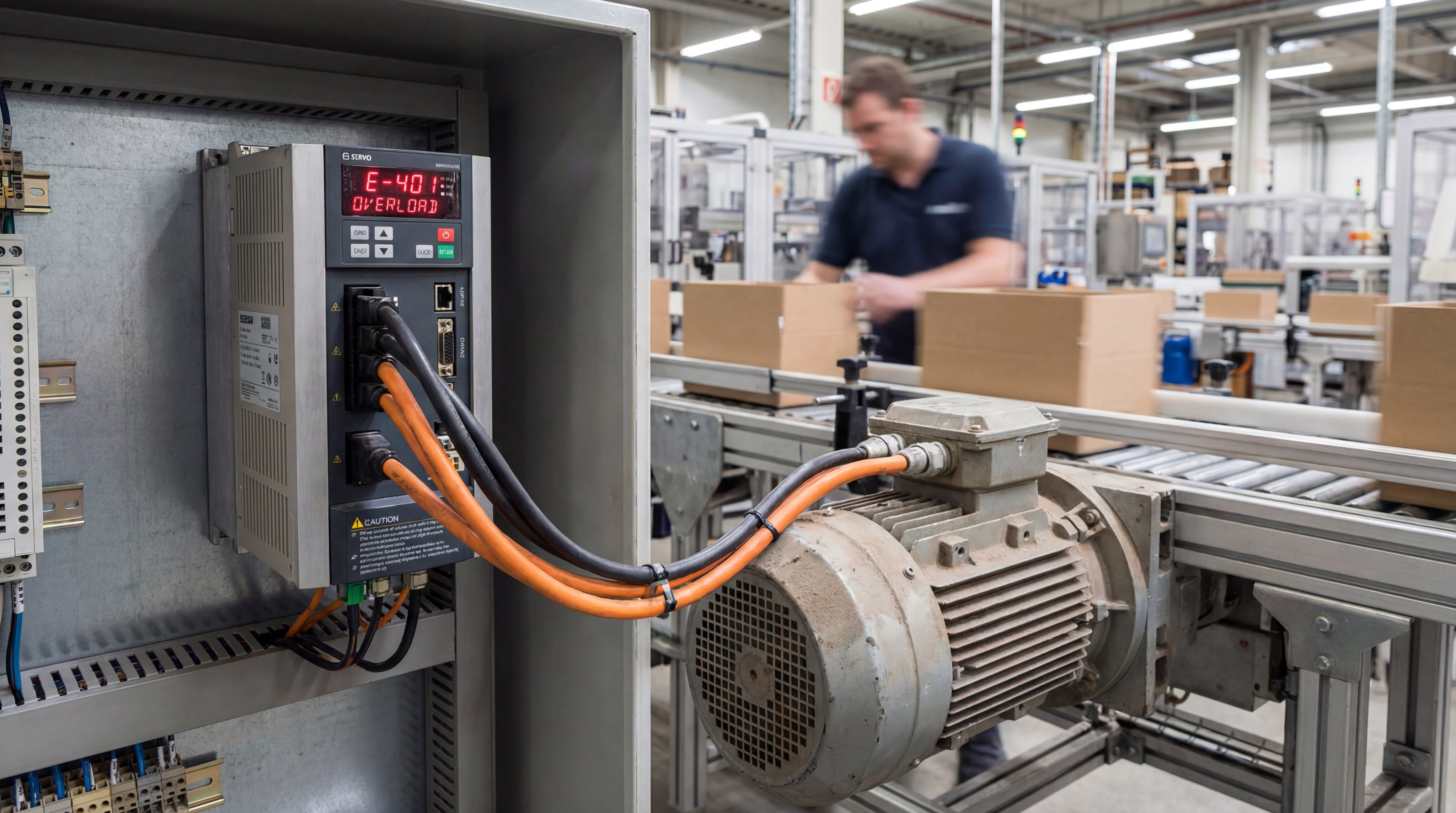
If your packaging line has been running at 100% capacity for hours in a hot warehouse, the drive motor might trip. The E02 code can serve as a warning that the inverter has shut down to prevent the motor from burning.
The best part? A simple “cool down” period often resolves this without any parts replacement or software changes. If it happens frequently, you might need to adjust the torque settings in the PLC parameters to handle heavier loads.
Key Takeaway: E02 is your machine’s way of saying it is working too hard or something is physically blocking its path.
E02 Cause
Checkpoint
Quick Fix
Mechanical Block
Guide Rails
Clear debris and lube
Motor Overload
Inverter Display
Check for high current draw
Sensor Failure
Limit Switch
Clean or realign sensor
Analyzing these points will help you eliminate recurring E02 faults and keep your packaging carriage moving smoothly.
How do I apply PLC error troubleshooting to I/O racks?
How you apply PLC error troubleshooting to I/O racks involves checking the status LEDs and using a multimeter to verify field power. I/O modules are the “hands and feet” of the PLC, and they are often the first to fail due to external electrical surges. PLC error troubleshooting for I/O requires you to force an output in the software to see if the physical relay actually clicks. If the software says “On” but the light on the module stays “Off,” the internal circuitry is likely blown.
Are the sensors getting power?
Most input failures are not caused by the PLC itself but by a lack of 24V field power to the sensors. If a wire breaks in a cable tray, the PLC will never receive the signal it needs to continue.
Look: Always check the “Common” wire on your I/O rack before assuming the module is dead.
Check for 24V at the sensor body.
Look for “Active” lights on the sensor.
Verify all terminal screw tightness.
Use a jumper to test the input.
If jumping the input works, your PLC is fine, and the problem is somewhere in your field wiring.
Has a fuse blown in the module?
Many high-quality PLC output modules have individual internal fuses for each channel to protect the expensive CPU. If a solenoid valve shorts out, it will blow the fuse for that specific output channel only.
You might be wondering: How do I check a fuse without taking the module apart?
Most modules have a “FUSE” indicator light.
Red LED indicates a blown circuit.
Check for 0V output when active.
Replace the external load before the fuse.
Key Takeaway: I/O troubleshooting is 90% about checking external wiring and only 10% about the actual PLC hardware modules.
I/O Fault
Symptom
Diagnostic Step
Blown Output
No Voltage at Terminal
Check for red “FUSE” LED
Dead Input
Sensor light on, PLC off
Check common wire continuity
Module Fault
All I/O LEDs flashing
Reseat the module in rack
By following this table, you can isolate I/O issues in minutes rather than hours of downtime.
Can software logic use PLC error troubleshooting?
Software logic can use PLC error troubleshooting to resolve watchdog timers and ensure there are no conflicting commands in your ladder rungs. Unlike hardware failures, these errors only occur during specific machine states or rare operational sequences. Standard PLC error troubleshooting for logic involves looking for “illegal” operations that the CPU cannot process. If your code tells a motor to move forward and backward at the same time, the PLC will fault.
Is the watchdog timer too short?
The watchdog timer monitors how long it takes for the PLC to complete one full “scan” of the program. If your program becomes too large or gets stuck in a “loop,” the timer expires and shuts down.
The best part? Optimizing your code is usually more effective than just increasing the watchdog time limit in settings.
Remove redundant ladder rungs.
Use subroutines for math tasks.
Avoid large “For-Next” loops.
Check for recursive logic paths.
If the scan time is erratic, you may have a hardware module that is slow to respond on the backplane.
Are there math calculation errors?
In packaging machines that calculate weights or lengths, a math error can crash the CPU instantly. If a sensor fails and sends a “0” value used as a divisor, the PLC cannot process the infinity result.
Here is the deal: You must add “Zero Checks” in your code before any division instruction occurs.
Verify divisor is greater than zero.
Use limit blocks for analog inputs.
Add overflow protection for counters.
Check for invalid data types.
Key Takeaway: Logic errors require a deep understanding of the machine’s sequence but are often solved by adding simple safety checks.
Logic Error
Cause
Prevention
Watchdog Fault
Scan time too long
Optimize ladder rungs
Math Overflow
Result too large for tag
Use larger data types
Duplicate Coil
Two rungs for one output
Use one coil per output
Proper logic management ensures your machinery runs smoothly without unexpected “ghost” stops during production.
Why is HMI connectivity part of PLC error troubleshooting?
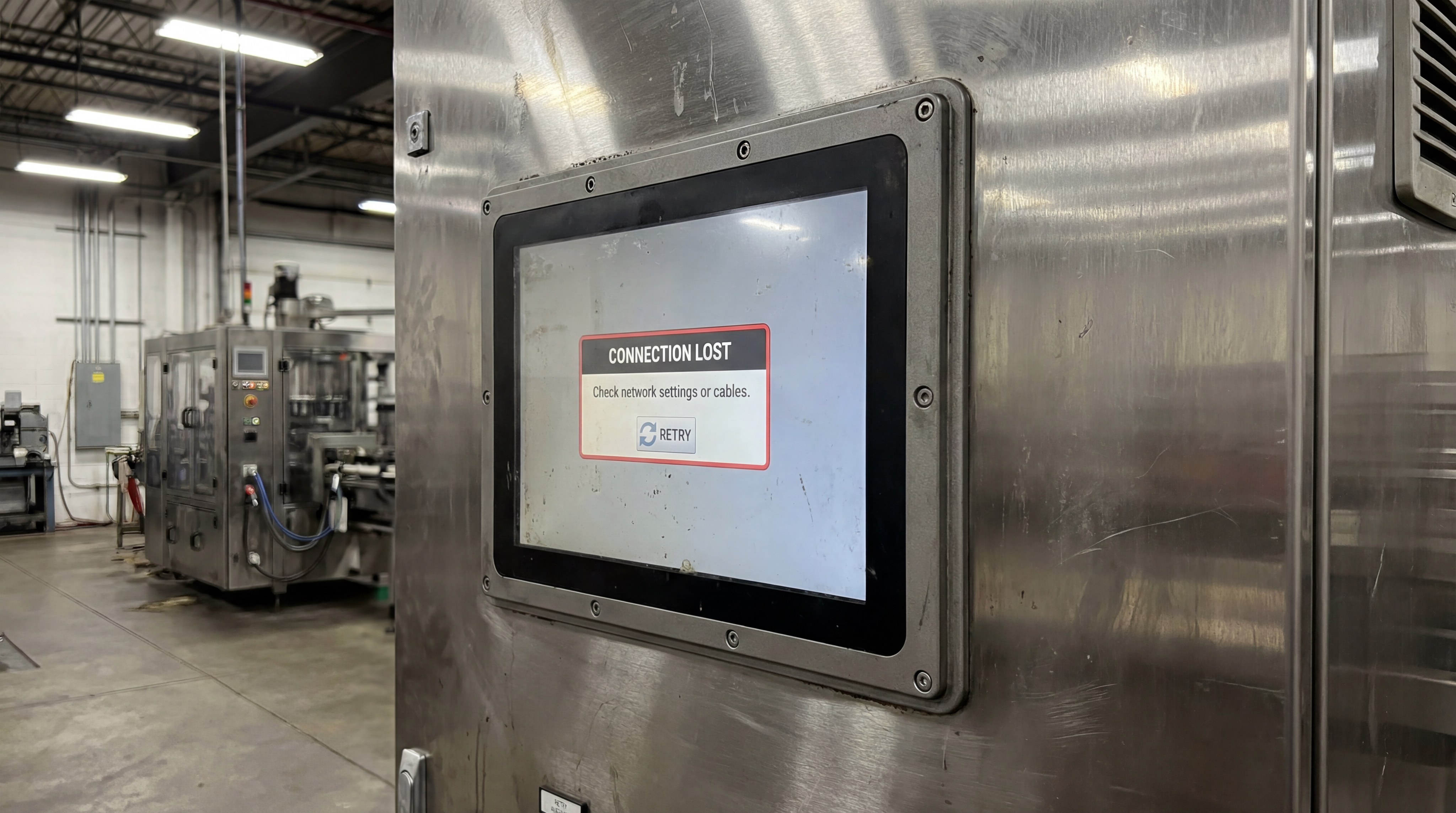
HMI connectivity is part of PLC error troubleshooting because the screen is your primary interface for reading the PLC’s diagnostic buffer and status. When the “Connection Lost” alert appears, you lose the ability to see what the machine is trying to tell you about its health. Applying PLC error troubleshooting here means checking the serial or Ethernet link between the display and the controller. If the HMI cannot get data, you are essentially flying blind during a repair process.
Is the screen hardware failing?
HMIs are often exposed to physical touch and environmental contaminants that can damage their internal communication ports. If the screen flickers or stops responding to touch, the issue might be internal to the HMI hardware.
Think about this: How do I know if the HMI or PLC is at fault?
Check the HMI power status.
Look for “Link” lights on the port.
Try a different communication cable.
Ping the HMI from a laptop.
If you can ping the PLC but not the HMI, the problem is likely in the display unit or its configuration.
Are the driver settings correct?
The HMI must be told exactly which “language” or protocol to use when talking to the specific PLC model you have installed. If someone recently updated the HMI firmware, the driver settings might have been reset to factory defaults.
Look: A mismatch in baud rate or parity will cause the HMI to show “Comm Error” indefinitely.
Match PLC and HMI baud rates.
Verify station or node numbers.
Check the protocol (e.g., Modbus).
Ensure tag addresses are valid.
Key Takeaway: A working HMI is your most valuable diagnostic tool; always prioritize fixing the display link before diving into the CPU.
HMI Fault
Likely Cause
Fix
Screen Blank
Power Supply Failure
Check 24V DC input
Connection Lost
Cable or IP Mismatch
Verify IP and cabling
Slow Response
Network Congestion
Segment the network
Fixing the HMI link allows you to use the screen’s built-in troubleshooting pages to find the root cause.
Who helps you with professional PLC error troubleshooting?
Who helps you with professional PLC error troubleshooting includes manufacturer technical support, online automation forums, and expert engineering teams like newideapack. When a code is so rare that it isn’t in your manual, you need a specialist who has seen that exact behavior before. Expert PLC error troubleshooting saves you from “trial and error” parts replacement that costs thousands of dollars. Having a direct line to your machine builder ensures you get the right advice to resume production quickly.
Should I call the manufacturer?
If you have performed the basic checks on power, cables, and E-Stops and the error remains, it is time to call in the professionals. Trying to “hack” your way through a proprietary system error can lead to data loss or further damage.
The best part? You can save time by having specific information ready before you call support.
Machine serial number.
Exact error code and LED status.
Recent changes made to the line.
Photos of the PLC module rack.
This preparation allows the support engineer to diagnose the issue remotely and guide your team through the fix.
Can I find answers online?
Online communities like “PLCTalk” or “Reddit Automation” are goldmines for troubleshooting rare codes on legacy hardware. Often, another engineer has faced the exact same issue and shared the solution with the community.
Look: Always verify online advice against your official machine manual before making changes.
Search for brand and error code.
Watch YouTube for visual guides.
Download technical reference PDFs.
Consult the newideapack blog.
Key Takeaway: You are never alone in the world of automation; leverage industry experts to minimize your downtime and stress.
Support Source
Best For
Speed
Machine Builder
Specific Machine Logic
Fast
PLC Manual
General Definitions
Instant
Online Forums
Rare or “Ghost” Issues
Variable
This final table summarizes your options when the solution to a complex fault isn’t immediately obvious to your team.
What data trends influence PLC error troubleshooting?
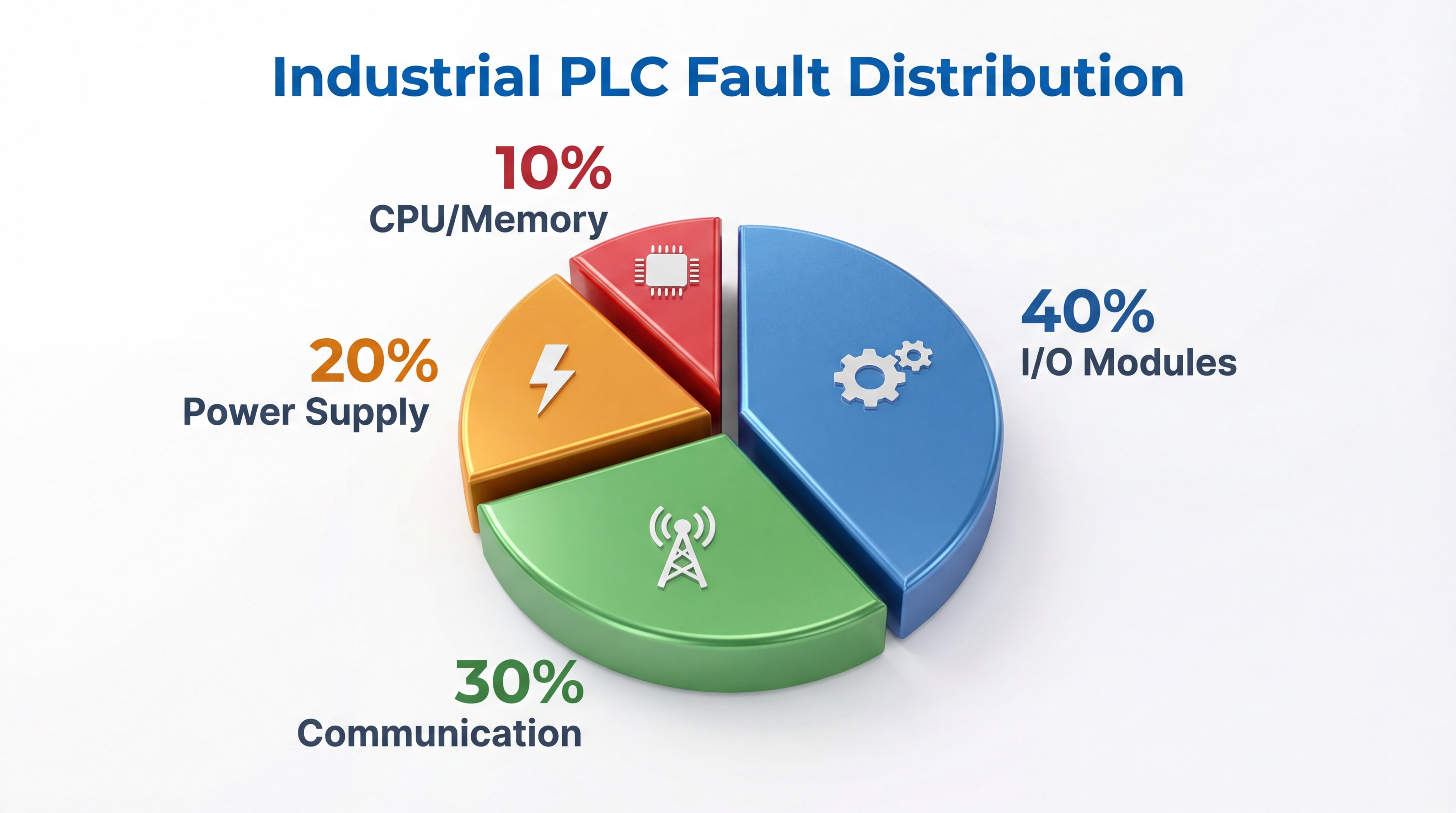
What data trends influence PLC error troubleshooting are the high percentages of I/O and communication failures compared to rare CPU hardware deaths. Most issues on a packaging line are external to the PLC’s internal silicon, focusing instead on sensors, cables, and power supplies. By using PLC error troubleshooting to analyze your own fault history, you can identify recurring problems that need permanent fixes. If 40% of your stops are I/O related, you might need better sensor protection or higher-quality field wiring.
Why do I/O modules fail most?
I/O modules are the interface between the clean control cabinet and the messy, vibrating world of the production floor. They take the brunt of electrical noise, short circuits, and physical damage from mechanical components.
Think about this:
Sensors get hit by moving parts.
Wires are pulled during cleaning.
Fluids can enter junction boxes.
Relays have a limited cycle life.
Understanding that I/O is the “weakest link” allows you to stock the right spare parts and prioritize inspections.
Is communication becoming more stable?
With the shift from serial to Ethernet-based protocols, communication stability has improved, but network complexity has increased. Modern PLC error troubleshooting now requires basic IT knowledge like subnet masking and switch management.
Here is the kicker: While cables are tougher, network traffic jams can now cause “mystery” timeouts that were rare in the past.
Use managed switches for traffic.
Isolate control and office nets.
Monitor network load percentages.
Check for “CRC” errors in software.
Key Takeaway: Focusing your maintenance efforts on I/O and networking will solve the majority of your automation headaches before they happen.
Fault Category
Frequency
Common Root Cause
I/O Modules
40%
Field wiring and sensors
Communication
30%
Cable damage and noise
Power Supply
20%
Utility sags and loose terminals
CPU/Memory
10%
Logic bugs and heat
This chart illustrates that a systematic approach to external components is the most effective way to manage your facility.
*
Conclusion
Mastering PLC error codes is the difference between an hour of downtime and a full day of lost production on your packaging line. By following a systematic approach—checking physical connections, verifying 24V power, and decoding specific manufacturer codes—you can keep your machinery running at maximum efficiency. If you find yourself stuck on a stubborn fault or need a more reliable automation solution, please contact us today. At newideapack, we are committed to providing the world-class support and robust machinery your business needs to thrive in the competitive global market.
FAQ
Can I reset a PLC error just by cycling the power? Sometimes, but it is rarely a permanent solution. While power cycling clears the temporary memory and might get the machine moving, it does not fix the underlying cause like a loose wire or a logic bug, meaning the error will likely return.
How do I know if the PLC hardware itself is actually dead? A dead PLC usually shows no LED lights at all even when power is confirmed, or it stays in a constant reset loop. If you cannot establish a software connection despite using the correct cable and settings, the internal processor is likely fried.
What is the best tool for physical PLC error troubleshooting? The best tool is a high-quality digital multimeter with thin probes for testing tight terminal blocks. This allows you to verify voltage delivery, signal continuity, and sensor outputs, which accounts for the vast majority of “PLC errors” that are actually wiring faults.
Can I change PLC parameters while the machine is running? Usually no, as most industrial controllers require you to be in “Program” or “Remote” mode to change core configuration settings. Some systems allow “Online Edits” for minor logic changes, but this should only be done by experienced programmers to avoid immediate mechanical crashes.
How do I prevent future PLC system crashes? The best way is to maintain a clean, cool environment for the control cabinet and perform monthly inspections of all wiring terminals. Keeping your cabinet filters clean and your firmware updated will eliminate the heat and software bugs that cause most unexpected system halts.
Sales Pitch Component
Download our PLC Maintenance Checklist for Packaging Professionals.
If you find yourself stuck on a stubborn fault or need a more reliable automation solution, please contact us today.